Home Wi-Fi Security: Router Setup, Guest Networks, and Daily Privacy Habits
Secure your home Wi-Fi with router settings, guest networks, strong encryption, and privacy habits. Protect your family from online threats.
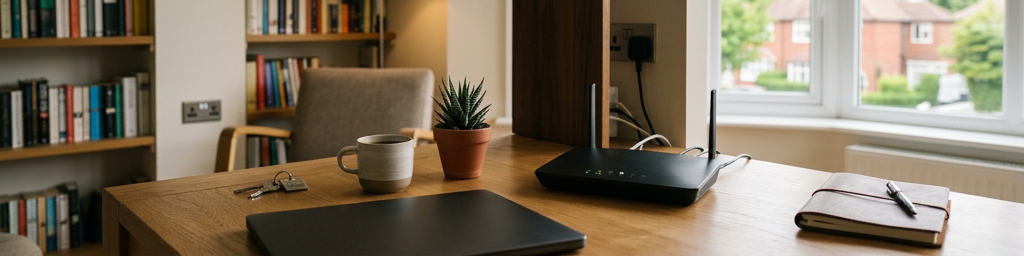
Secure Your Router First
Change Default Login and Disable Remote Access
Your router is the entry point for all internet traffic in your home. Leaving its admin credentials at factory settings invites trouble. Set a long, unique admin passphrase and turn off any remote management or cloud control features. This prevents outsiders from altering your network settings from outside your home.
Enable Automatic Firmware Updates
Router software has bugs that manufacturers fix through updates. If auto-update is off, those vulnerabilities remain. In your router settings, turn on automatic firmware updates. If that option isn't available, set a monthly reminder to check for new versions. Apply updates during off-peak hours to minimize disruption.
Use Strong Wireless Encryption
Wi-Fi signals travel beyond your walls. Encryption scrambles the data so only authorized devices can read it. Choose WPA3 if your hardware supports it; otherwise use WPA2-AES. Disable older encryption standards like WEP or WPA/TKIP. Pair this with a long, memorable passphrase that's not used elsewhere. A neutral network name (not your name, address, or router model) further reduces risk.
| Router security check | Why it matters |
|---|---|
| Unique admin password | Prevents attackers from taking over your network |
| Automatic firmware updates | Closes known security holes without manual effort |
| Remote management disabled | Reduces entry points for internet-based attacks |
| Strong wireless encryption | Stops nearby snoopers from reading your traffic |
Segment Your Network for Safety
Set Up a Guest Network
Sharing Wi-Fi with visitors shouldn't give them access to your personal devices. A guest network creates a separate pathway for friends to get online without reaching your laptops, phones, or storage. This is especially important if a guest's device has malware. In router settings, enable the guest network, give it a clear but anonymous name, and set a simple password. Also, block guest devices from communicating with your main local network.
Isolate IoT Devices
Smart plugs, cameras, speakers, and other internet-connected gadgets often have weak security. Place them on a separate network (via another SSID or VLAN) away from your computers and phones. Your phone can still control them through apps, but they can't freely scan your personal data. If your router only supports two networks, reserve one for personal devices and the other for gadgets.
Harden Your Wi-Fi Signal
Choose Modern Encryption
In your router settings, select WPA3 or WPA2-AES for the main Wi-Fi network. Turn off older modes like WPA2-TKIP or WEP. If an old device can't connect with modern encryption, either wire it directly or replace it rather than weakening security for the whole household.
Create a Strong Passphrase
Short, guessable passwords are a common entry point. Replace them with a long passphrase made of multiple unrelated words, plus a number or symbol. Avoid using your address, name, or any recycled passwords. Write it down and store it securely at home—that's safer than choosing something weak for convenience.
Name Your Network Carefully
The SSID you broadcast can reveal your router's brand and model, which helps attackers target known flaws. Use a generic, boring name instead of your family name or address. Hiding the SSID entirely is rarely effective and can cause devices to broadcast more information. Strong encryption plus a neutral name is the best approach.
Daily Privacy Habits
Automate Updates and Use Password Managers
Enable automatic updates on all devices where possible (phones, laptops, TVs). For devices that lack auto-update, create a checklist and review it occasionally. Use a password manager or a locked notebook to store unique, strong passwords for router admin, Wi-Fi access, and online accounts.
Watch for Security Cues
Even on a secure network, how apps handle data matters. Look for the padlock icon in your browser—it means encryption is active. Avoid entering sensitive info on sites without it. Prefer messaging and banking apps that support multi-factor authentication. Over time, choosing privacy-friendly tools reduces the amount of data sent in the clear.
Review Connected Devices Regularly
Check your router's device list every few weeks. Familiarize yourself with the devices that should be connected. If you see something unfamiliar, disconnect it, change your Wi-Fi password, and reconnect only trusted devices. Remove old gadgets you no longer use to reduce weak points.
| Quick home check-ups | What to look for |
|---|---|
| Router device list | Unknown devices, old gadgets still connected |
| Smart gadget app dashboards | Pending updates, default passwords, extra permissions |
| Browser address bar | Missing lock icons on login pages |
| Family routines | Who shares passwords, how guests connect |
Making Security Work for Everyone
Use Analogies, Not Jargon
If you're the family network fixer, avoid tech jargon. Use simple comparisons: the guest network is like a guest room, the main network is the bedroom, the IoT network is the storage room. When family members understand each space's purpose, they're more likely to follow the rules without feeling lectured.
Divide Responsibilities
Not everyone needs to know how to update the router. Let one person handle complex setup while others follow simple rules: which Wi-Fi name to use, where to find the visitor password, when to ask for help. Give networks clear names like "Home Main" and "Guest" instead of random codes. The goal is safer behavior by default.
Aim for Safe and Easy
Turning your home into a bunker rarely works—people bypass painful rules. Focus on one-time tweaks with long-lasting protection: separating visitors and gadgets, tightening router access, using strong encryption. These are set-and-forget steps. Occasional quick check-ups and gentle conversations keep things on track. Your network becomes just another part of the house you quietly manage.
Frequently Asked Questions
How often should I update my router password? Every 3–6 months, and immediately after sharing it widely, a breakup, flatmate change, or suspected security incident.
What are the most important router settings? Enable WPA3 or WPA2-AES, disable WPS, change default admin credentials, rename the SSID, and turn on automatic firmware updates.
How do I set up a guest network properly? Create a separate SSID with a different password, block local network access, limit bandwidth if possible, and disable the guest network when not in use.
How can I protect IoT devices? Place them on a separate VLAN or guest network, disable unnecessary remote access, keep firmware updated, and use strong unique passwords.
What everyday habits support digital privacy? Use a password manager, enable multi-factor authentication, keep systems updated, avoid unknown links, review app permissions, and teach children basic privacy rules.